

These are instructions for removing or uninstalling Mi Flash Pro from a Windows Computer (you can use this method on Windows 7, 8, 8.1, 10, or 11).
Note: This guide provides steps to remove or uninstall Mi Flash Pro using Windows Programs and Features.
Steps to Uninstall Mi Flash Pro
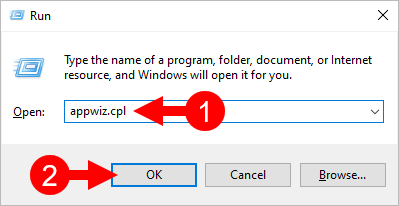
- Open the Programs and Features Window on the computer. To open the Programs and Features Window: Press
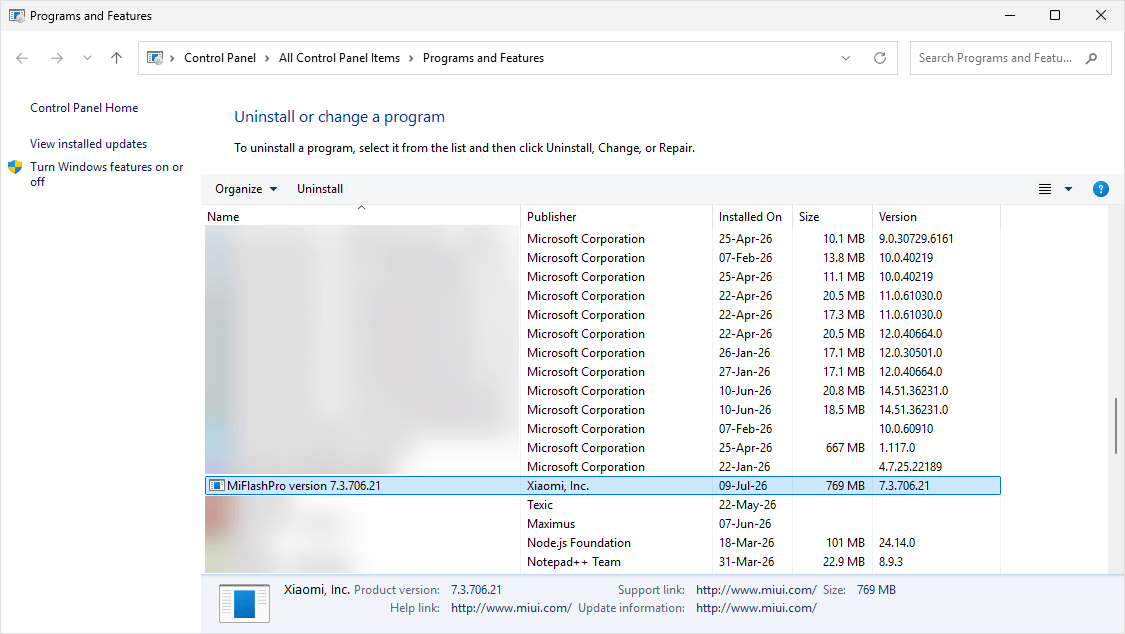
Windows+R, typeappwiz.cpl, and click the OK button. - Locate the MiFlashPro from the list:
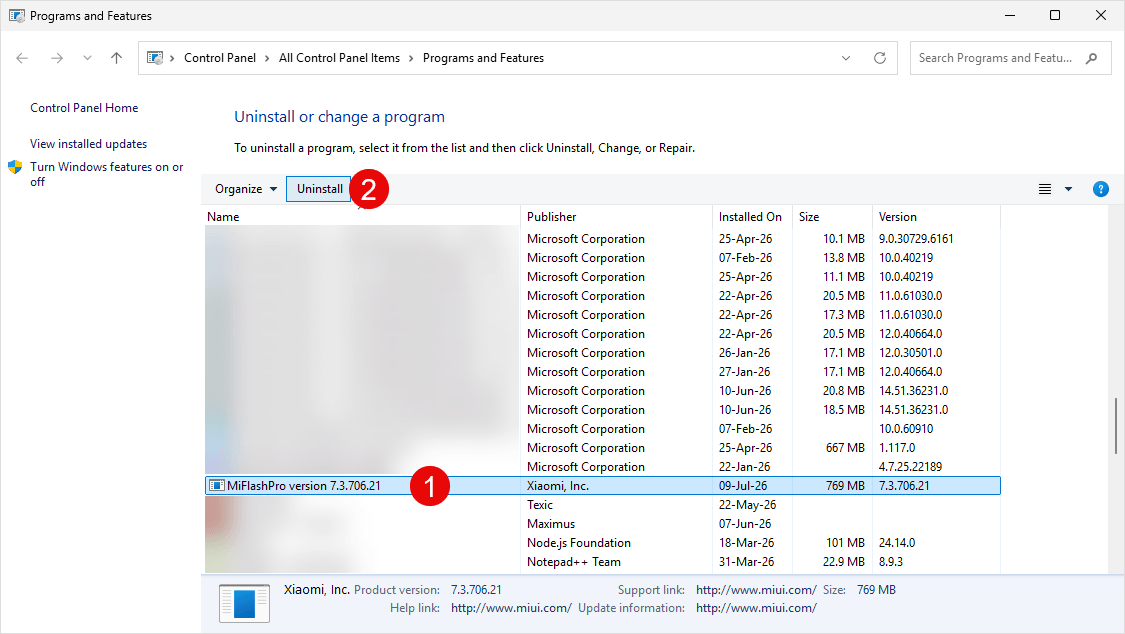
- Select the MiFlashPro and click on the Uninstall button. Alternatively, you can also double-click on the MiFlashPro to launch the Uninstallation Window:
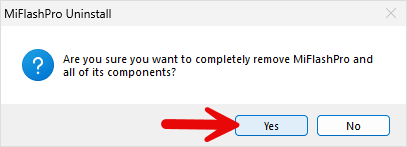
- Now, Windows will prepare to remove or uninstall MiFlashPro from the computer. Click on Yes to proceed.
- Once the Uninstallation is completed, you will no longer see the MiFlashPro application in the Programs and Features Window.
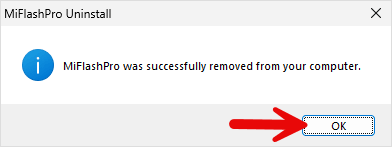
Congratulations! Now restart the computer. Once the computer is restarted, all associated registry entries will be removed.
Readme Once:
[*] Xiaomi Driver: If you’re looking for a Xiaomi driver for a specific model, visit our Xiaomi Driver website.
[*] Poco Driver: If you’re looking for a Poco driver for a specific model, visit our Poco Driver page.
[*] Xiaomi Firmware: If you’re looking for official Xiaomi stock firmware, visit the Xiaomi Firmware page.
